Best Rivals Wallpapers and Custom Skybox Guide for Roblox Fans
Discover the best Rivals wallpapers for your desktop and learn how to install custom skyboxes in Roblox RIVALS to elevate your gaming visuals today.
Published:
Table of Contents
The immersive world of RIVALS by Nosniy Games has taken the Roblox community by storm, leaving players eager to personalize their experience both inside and outside the game. Whether you are looking for high-quality rivals wallpapers to deck out your desktop or wanting to transform your in-game aesthetic with custom skyboxes, you have come to the right place.
Personalizing your gaming environment is more than just a trend; it is about creating a workspace that reflects your passion for the game. In this guide, we will explore how to find the perfect rivals wallpapers and provide a step-by-step walkthrough on modifying your game’s atmosphere for a truly unique look.
Why Visual Customization Matters in RIVALS
For many competitive players, the standard look of a game can eventually feel stagnant. By changing your rivals wallpapers or implementing custom skyboxes, you breathe new life into your setup. Community feedback suggests that players who customize their UI and environment report a more engaging and "cozy" experience, especially during long grinding sessions.
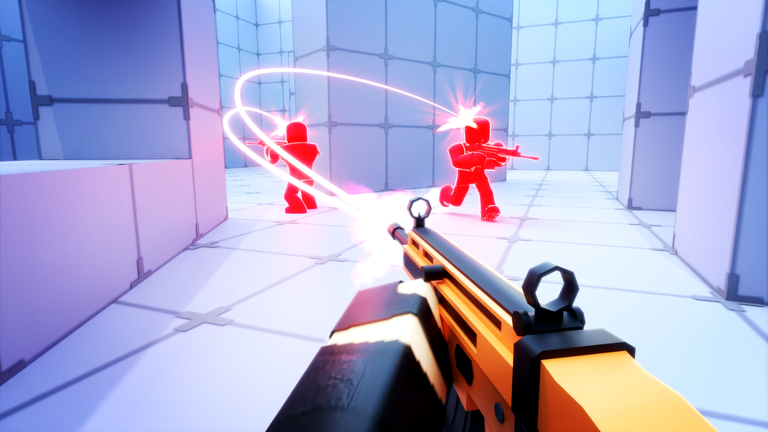
Visual mods, specifically skyboxes, change the lighting and ambiance of the arena. When you look up during a high-stakes 1v1, seeing a vibrant anime-themed sky or a serene "Good Night" moonlit horizon can significantly boost your immersion.
Benefits of Visual Personalization
Feature
Impact on Gameplay
Community Sentiment
Custom Skyboxes
Enhances immersion and atmosphere
Extremely positive
HD Wallpapers
Improves desktop aesthetics
Highly requested
UI Tweaks
Better visibility in intense combat
Variable/Preference
Finding the Best Rivals Wallpapers
If you are hunting for the perfect background, the community has curated massive collections. Sites like Wallpaper Cave and Pinterest are the primary hubs where fans share their artistic renditions and high-definition captures from the game.
When selecting your next background, consider the resolution and the color palette. Darker themes often reduce eye strain during late-night gaming sessions. According to community reports, many players prefer minimalist designs that highlight the iconic character silhouettes found in RIVALS.
Popular Wallpaper Categories
Character Spotlights: Focused shots of specific loadouts.
Map Landscapes: High-resolution captures of the arena.
Fan Art: Stylized, hand-drawn versions of the game's aesthetic.
Abstract/Minimalist: Clean designs featuring the game's logo or color scheme.
How to Install Custom Skyboxes in RIVALS
One of the most exciting features discovered by the community is the ability to swap out the default game skybox. While the game does not provide a native menu for this, users have developed tools to safely replace texture files.
Safety First
Always download files from trusted community creators. The methods described here involve modifying local texture files, which is generally considered safe but should be done with caution.
Step-by-Step Installation Guide
Download a Trusted Launcher: Use a tool like Fishstrap or Blockstrap (a popular fork of the standard Roblox client).
Access Texture Folders: Right-click your launcher icon, select "Open File Location," and navigate to versions > [version number] > platform content > PC > textures > sky.
Prepare Your Skybox Files: Download your preferred .mm2 or texture files from verified community links.
Replace Files: Copy your new skybox textures into the sky folder, ensuring you select "Replace" when prompted.
Launch and Enjoy: Open RIVALS and head to the shooting range to see your new sky.
Installation Checklist
Step
Action
Status
1
Install Fishstrap/Blockstrap
Required
2
Locate sky folder
Required
3
Extract custom sky files
Required
4
Overwrite existing textures
Required
Troubleshooting Common Issues
Even with a clear guide, technical hitches can occur. Many players often find that their skybox does not load correctly or that the game reverts to default after an update.
Issue: Skybox not appearing. Fix: Ensure you have correctly replaced the files in the specific version folder currently being used by your launcher.
Issue: Game feels laggy. Fix: High-resolution textures can occasionally impact performance; try a lower-resolution pack if your PC struggles.
Issue: Want to revert to default. Fix: Simply reinstall the Roblox client to restore original game files.
Avoid Third-Party "Executors"
Be wary of any "skybox changers" that require you to run external scripts or inject code into the game process. Only use the manual file-replacement method described above to avoid potential account security risks.
Enhancing Your Competitive Edge
While rivals wallpapers and skyboxes are purely cosmetic, they play a psychological role in your performance. A clean, aesthetically pleasing environment can help you maintain focus. Some top-ranked players swear by "minimalist" skyboxes that reduce visual clutter, allowing them to track enemies more effectively against the horizon.
Comparison of Aesthetic Choices
Style
Visual Impact
Recommended For
Vibrant/Anime
High contrast, bright colors
Casual, fun matches
Minimalist/Dark
Low distraction, high clarity
Competitive 1v1s
Realistic/Nature
Atmospheric, immersive
General gameplay
Frequently Asked Questions (FAQ)
Can I get banned for using custom skyboxes?
According to community reports, simply replacing local texture files for rivals wallpapers or skyboxes is not considered cheating and does not trigger anti-cheat systems. However, always avoid using software that injects code into the game.
Are these customization methods available on mobile?
No, the current methods for installing custom skyboxes are exclusive to PC users who can access the local Roblox directory. Mobile and console players cannot modify these texture files.
Where can I find the best community-made content?
You can discover high-quality rivals wallpapers on platforms like Wallpaper Cave or Pinterest, while custom skybox files are frequently shared within specific Discord communities dedicated to Roblox customization.
Do I need to update my skyboxes after a game update?
Yes. Whenever the game updates, your client files may be overwritten. You might need to re-apply your custom skybox textures to the new versions folder created by the update.