RIVALS Screen Shake Guide: How to Optimize Your Visual Settings
Struggling with RIVALS screen shake? Discover how this mechanic affects your gameplay, why it exists, and how to optimize your settings for better performance.
Published:
Table of Contents
The fast-paced combat in RIVALS is designed to keep your adrenaline pumping, but sometimes the intense visual feedback can become a distraction. Many players find that RIVALS screen shake impacts their ability to track targets accurately during high-intensity firefights.
Understanding how RIVALS screen shake functions is essential for any player looking to climb the ranks. While some view it as a necessary gameplay element that mimics recoil, others find it to be a significant barrier to consistent aim. In this guide, we will break down why this feature exists, how it influences your combat performance, and the best ways to manage your visual experience.
Why Does Screen Shake Exist in RIVALS?
In many modern shooters, screen shake serves as a form of "virtual recoil." Since developers often want to avoid complex spread patterns or excessive weapon kick that might frustrate new players, they use camera movement to provide feedback.
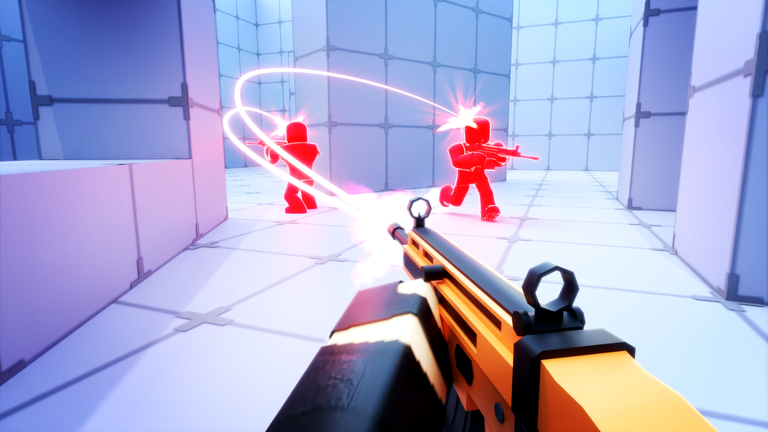
When you fire your weapon in RIVALS, the camera subtly shifts to simulate the power of the shot. This is intended to make the gun feel "heavier" and more impactful. However, in a game that demands high precision, this constant movement can lead to visual fatigue.
The Impact of Visual Feedback on Gameplay
Feature
Purpose
Player Perception
Screen Shake
Immersive Feedback
Can cause motion sickness or aim deviation
Recoil
Balancing Weaponry
Provides a sense of skill-based progression
Visual Clutter
Environmental Depth
May obscure small targets during combat
According to community discussions, many players feel that the shake is inconsistent across different characters. Some heroes have noticeably more intense camera movement, which can make them feel significantly harder to play effectively compared to others.
Analyzing the "Necessary Evil" Argument
There is a long-standing debate within the community regarding whether or not this feature should be customizable. Some experienced players argue that removing it would be akin to removing recoil from a professional tactical shooter, essentially lowering the skill ceiling.
The Skill Ceiling Perspective
Many top-tier players believe that managing visual disruption is a core skill. If you remove it, you are effectively neutralizing a balancing mechanic that requires players to compensate for their movement and firing patterns.
However, for the average player, accessibility is key. If a game’s visual effects make it difficult to see enemies, it can lead to a negative experience. The challenge lies in finding a balance where the game feels punchy without becoming unplayable.
Can You Disable Screen Shake in RIVALS?
Currently, there is no official in-game toggle to completely disable this effect. Players often look for third-party mods or configuration files to remove it, but we must emphasize caution.
Why You Should Avoid "No-Shake" Mods
Account Risk: Using unauthorized software or modifying game files can lead to account bans.
Game Integrity: Most community-made mods for this purpose are quickly patched or flagged as cheating by anti-cheat systems.
Stability Issues: Modifying game files often leads to crashes, especially after the developers push game updates.
Instead of looking for ways to bypass the system, it is better to focus on your display settings and equipment to mitigate the visual impact.
Tips to Minimize Visual Disruption
While you cannot turn it off, there are ways to make the experience more comfortable. Here are some actionable tips:
Adjust Your Monitor Distance: Moving slightly further back from your screen can reduce the perception of peripheral shaking.
Check Your Refresh Rate: Higher refresh rates (144Hz+) make motion appear smoother, which can help your brain process the camera movement more easily.
Optimize Graphics Settings: Lowering particle effects or environmental clutter can help you focus on the center of the screen, where the shake is often less distracting.
Recommended Settings for Better Tracking
Setting
Recommendation
Why?
Field of View (FOV)
Higher (90-105)
Reduces the "zoomed-in" perception of shake
Motion Blur
Disabled
Keeps edges crisp during movement
Brightness/Contrast
Balanced
Prevents screen flashing from compounding the shake
Community Perspectives: What Players Are Saying
The community is deeply divided. Some players claim they don't even notice the effect, while others find it extremely distracting. Based on recent social media threads and community reports, the general sentiment is that players want more control over their UI/camera settings.
"I feel like I'm playing in an earthquake," one user noted in a popular group discussion. This highlights the ongoing request for developers to provide a "Reduced Shake" option in future updates, similar to other competitive titles that prioritize accessibility.
How to Adapt Your Playstyle
If you find that the movement is ruining your aim, consider changing your character selection. Characters with high fire rates or those that require constant movement tend to have more pronounced camera feedback.
Test in the Practice Range: Spend time with every character to see which ones have the most manageable camera feedback.
Focus on Burst Tapping: For heroes with high-impact weapons, tapping instead of holding the trigger can reduce the duration of the screen shake.
Master Hip-Fire: In some cases, aiming down sights (ADS) exaggerates the effect. If a character is viable without ADS, try playing more aggressively in close quarters.
FAQ: Frequently Asked Questions
Q: Is there an official setting for RIVALS screen shake?
A: As of now, there is no official setting in the menu to turn it off. The developers have not implemented a toggle for this feature.
Q: Will I get banned for using a mod to remove it?
A: Yes, using third-party software or modified files to alter game mechanics is generally considered a violation of terms of service and carries a high risk of being banned.
Q: Does it affect all characters equally?
A: No, player experience suggests that the intensity varies based on the character's weapon type and fire rate. Some heroes feel much "smoother" to play than others.
Q: How can I improve my aim despite the shake?
A: Focus on your crosshair placement and target tracking rather than the camera movement. Practicing in the training range will help you build muscle memory to compensate for the visual feedback naturally.