How to Fix Rivals Blurry Textures: Complete Optimization Guide
Discover how to achieve crisp visuals or apply custom blurry textures in Rivals on Roblox. Learn the best settings and tools to optimize your gameplay today.
Published:
Table of Contents
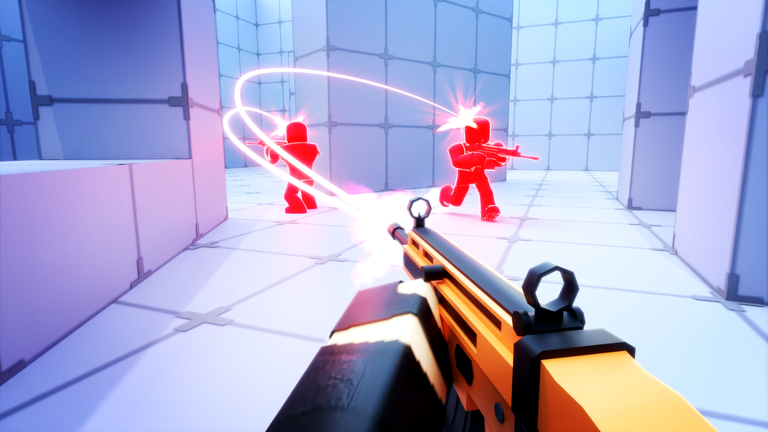
Many players in the competitive arena of RIVALS are constantly looking for ways to gain a visual edge. Whether you are struggling with unwanted graphical issues or seeking the popular rivals blurry textures aesthetic, understanding how your game renders is the first step toward peak performance.
Achieving the perfect look isn't just about personal preference; it’s about how your eyes track movement in a fast-paced environment. Some players swear by rivals blurry textures to reduce visual noise, while others prefer absolute clarity. In this guide, we will walk you through the methods to customize your game's visual profile safely and effectively.
Understanding Graphical Customization in Rivals
Before diving into configuration files or third-party tools, it is vital to understand why visuals might look "off" or blurry in the first place. Often, this is a byproduct of Roblox's dynamic scaling or outdated graphics settings.
Why Visuals Shift During Gameplay
Roblox frequently updates its engine, which can lead to texture resets or unexpected rendering behaviors. When you notice your game looking different after a patch, it is usually because the engine has overwritten your local PlatformContent files.
Factor
Impact on Visuals
Graphics Level
Lower settings may cause pixelation or blur
Engine Updates
Overwrites custom textures and configurations
Resolution Scaling
Causes anti-aliasing artifacts
Fast Flag Tweaks
Directly alters how textures are processed
How to Get Blurry Textures in Rivals
If you are specifically hunting for that soft, minimalist aesthetic, you aren't alone. Many top players use external tools to manage their configuration files. According to community reports, the most common way to achieve this is by using specialized launchers like Fleasion, which allow for the injection of specific JSON configurations.
Step-by-Step Installation Process
Download the Launcher: Use a trusted, community-verified launcher like Fleasion (ensure you are using the latest version).
Obtain the Config: Download the required .json file for blurry textures from a verified source (often found in creator Discord servers).
Configure: Open the launcher, navigate to the "Configs" section, and import your JSON file.
Apply: Ensure the "Blurry Arena" or equivalent profile is enabled before launching the game.
[!TIP]
Safety First
Always ensure you download tools from reputable sources used by large content creators. Avoid any "hacks" that promise account-breaking advantages, as these are often malicious.
Troubleshooting Texture Issues
Sometimes, you might encounter blurry textures when you actually want them to be sharp. This is a common complaint in the community. If your game looks unintentionally fuzzy, follow these steps to restore visual fidelity.
Restoring High-Quality Textures
Check Graphics Quality: Ensure your in-game Roblox settings are set to Level 3 or higher. At lower levels, the engine may force lower-resolution textures to save memory.
Verify Files: If you previously installed a texture pack, it might be corrupted. Navigate to your Roblox installation folder: AppData\Local\Roblox\Versions\.
Delete Custom Overrides: If you’ve modified the PlatformContent\PC\Textures folder, delete the modified files and restart the game to trigger a fresh download of the original assets.
The Role of Fast Flags in Competitive Play
Fast Flags (FFlags) are hidden configuration parameters that allow advanced users to tweak the Roblox engine. While powerful, they can be unstable.
Common FFlag Adjustments
FFlag Setting
Purpose
FFlagDebugGraphicsPreferD3D11
Forces DirectX 11 rendering for stability
DFIntTextureQualityOverride
Sets the baseline texture resolution
FFlagDisablePostFx
Removes post-processing blur effects
Players often use these to maximize FPS. For example, disabling post-processing effects can make the game look "flatter" but much clearer, which is preferred by many in high-stakes combat scenarios.
Community Tips for Visual Optimization
The community is constantly experimenting with new ways to improve visibility. A popular trend involves pairing specific texture packs with a "Grey Sky" mod. This combination helps keep the background neutral, ensuring that enemies stand out against the environment.
Recommended Steps for a Competitive Look
Clean Slate: Remove any legacy texture packs that haven't been updated for the current version of the game.
Monitor Settings: Ensure your monitor's sharpness and color profile are not adding artificial blur.
Update Regularly: Because Roblox updates frequently, keep a backup of your preferred configuration JSONs so you can re-apply them quickly after an update.
[!WARNING]
Update Alert
Always remember that every time the Roblox client updates, it will likely reset your Textures folder. Keep your custom files in a separate folder on your desktop for easy re-installation.
Frequently Asked Questions (FAQ)
1. Are blurry textures in Rivals considered cheating?
Generally, using configuration files to change textures is a common aesthetic choice. However, always ensure the tool you use does not provide gameplay advantages like wallhacks or aim assistance, as those will lead to a ban.
2. Why do my textures look blurry after an update?
Roblox automatically overwrites custom game files during updates to ensure stability. You will need to re-apply your custom texture packs or configuration files after each major update.
3. Can I get blurry textures on mobile?
Most methods for custom textures, including specific Fast Flag injections or texture pack replacements, are designed for PC. Mobile players are generally limited to the in-game graphics settings provided by the Roblox app.
4. What is the best way to improve visibility if I hate blur?
If you want to avoid blurry textures, set your Graphics Quality to 8-10, disable any custom texture packs, and ensure your monitor is running at its native resolution. This provides the crispest image possible for competitive play.