How to Get Rivals Dark Arena: Ultimate Texture Guide 2026
Want to master the Rivals Dark Arena look? Discover our step-by-step guide to installing custom dark texture packs for a sleek, competitive edge in Roblox.
Published:
Table of Contents
If you are a dedicated player of RIVALS on Roblox, you know that visual clarity is everything. Many top-tier players are now switching to a custom Rivals Dark Arena aesthetic to reduce eye strain and improve their focus during high-intensity matches.
Achieving this look isn't just about style; it’s about optimizing your visual environment for better performance. In this guide, we will walk you through exactly how to install these custom textures, why they benefit your gameplay, and the critical precautions you need to take to keep your game running smoothly.
Why Competitive Players Choose Rivals Dark Arena Textures
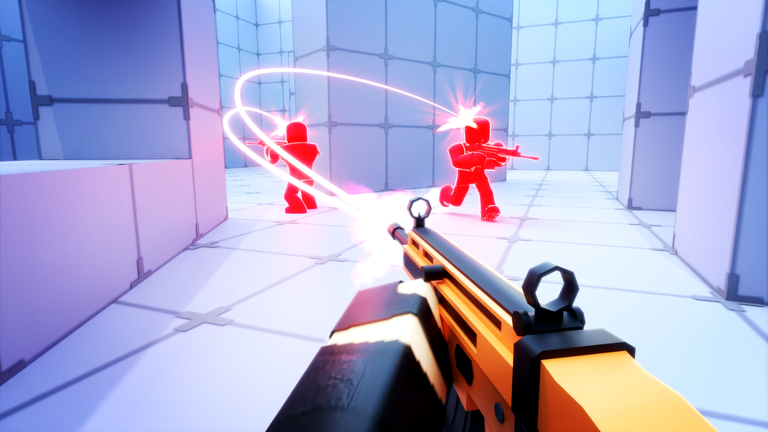
Many players prefer a darker color palette for their maps. When the environment is less cluttered with bright, high-contrast textures, it becomes significantly easier to spot enemy movement. This is the core appeal of the Rivals Dark Arena style.
Key Benefits of Dark Textures
Benefit
Impact on Gameplay
Reduced Eye Strain
Allows for longer, more comfortable gaming sessions.
Improved Visibility
Enemy models stand out better against darkened backgrounds.
Modern Aesthetic
Provides a sleek, professional "pro-player" look.
Consistent Lighting
Minimizes glare from overly bright map elements.
Beyond aesthetics, players often report that the modified textures provide a more "competitive" feel, similar to high-end shooters that allow for custom user interfaces and environment tweaks.
Preparation: What You Need Before Starting
Before diving into the technical steps, it is essential to prepare your system. Modifying game files is a straightforward process, but you must be careful to avoid corrupting your installation.
Always Backup Your Files
Before you move or delete any files in your Roblox Textures folder, create a copy of the original folder and save it in a separate location on your computer. This ensures you can revert to the default graphics if anything goes wrong.
Essential Checklist
A Reliable Mod Source: Ensure you are downloading your texture packs from trusted community repositories.
File Archiver: Have a tool like 7-Zip or WinRAR installed to extract the .zip files.
Graphics Settings: Note that these textures require specific in-game graphics settings to render correctly.
Step-by-Step Installation Guide
Installing the Rivals Dark Arena textures involves navigating to your Roblox directory and replacing the standard texture assets. Follow these steps carefully to ensure the mod is applied correctly.
For Windows Users
Locate the Folder: Right-click your Roblox shortcut and select "Open file location." If it leads to a launcher, repeat the process until you find the Versions folder.
Navigate to Textures: Go into the latest version-xxxx folder, then enter PlatformContent, then PC, and finally Textures.
Clear Old Files: Select all files in the Textures folder (Ctrl+A) and move them to your backup folder or delete them if you are confident.
Install New Assets: Extract your downloaded Rivals Dark Arena pack and copy all the new files into the now-empty Textures folder.
Restart the Game: Launch Roblox and join the game to see the changes in effect.
Installation Comparison: Windows vs. macOS
Feature
Windows Process
macOS Process
Access Path
AppData/Local/Roblox/Versions
Applications > Show Package Contents
File Handling
Replace via File Explorer
Replace via Finder
Update Reset
Frequent
Frequent
Troubleshooting Common Issues
Even with a perfect installation, you might encounter issues where the textures appear "white" or the game reverts to default settings. According to community reports, these issues are almost always related to your in-game graphics settings.
Managing Graphics Quality
If your map is not appearing dark, check your Roblox settings menu. Community feedback suggests that keeping your graphics quality set to 3 or higher is mandatory for custom textures to render properly. If you drop your graphics quality to 1 or 2, the game engine may force-load the default "white" textures, effectively overriding your mod.
Dealing with Roblox Updates
One of the most frequent questions from players is why their textures reset after a few days. Roblox automatically updates its client regularly. During these updates, the platform overwrites the Textures folder with the official files, effectively deleting your custom Rivals Dark Arena modifications.
The Fix: Keep your downloaded texture pack folder saved in an easy-to-access location. When an update resets your game, simply re-copy and paste the files into the Textures folder again. It takes less than a minute once you have the routine down.
Understanding the Competitive Ecosystem
While modifying textures can improve your experience, it is important to stay informed about the broader Rivals community. Many players participate in competitive leagues, such as the RCO (Rivals Competitive League), where skill and strategy are paramount.
While using a Rivals Dark Arena texture pack is generally accepted as a client-side visual preference, always ensure that your modifications do not violate the game's Terms of Service. Stick to texture packs that only change colors and lighting; avoid any mods that alter hitboxes, weapon models, or movement speed, as these can lead to account restrictions.
Frequently Asked Questions (FAQ)
Can I get banned for using a Rivals Dark Arena texture pack?
Generally, simple texture replacements that do not provide a competitive advantage like "ESP" (seeing through walls) or altered hitboxes are tolerated. However, always use files from reputable community sources and avoid any "mod" that claims to give you an unfair gameplay edge.
Why do my textures keep reverting to white?
This usually happens because a Roblox update has overwritten your custom files. Simply repeat the installation steps by pasting your dark texture files back into the PlatformContent/PC/Textures folder.
What should I do if the game crashes after installing?
If the game crashes, you likely replaced a file that you shouldn't have or the installation was incomplete. Delete the current Textures folder and restore the original files from your backup. If that fails, uninstall and reinstall Roblox to reset the files to their factory state.
Do I need a high-end PC to use these textures?
No, the Rivals Dark Arena texture pack is simply a set of image files. They do not increase the demand on your hardware compared to the default textures. As long as you can run the game at graphics setting 3, you can use these textures without any performance loss.