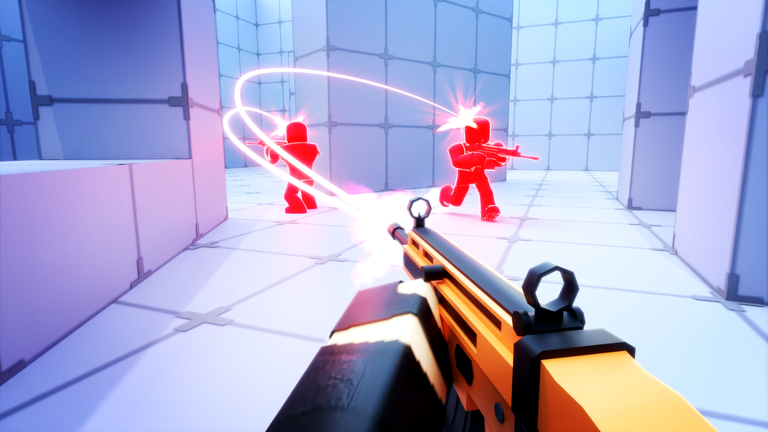
RIVALS Keeps Crashing on Roblox? Top Fixes to Resolve Issues
Experiencing RIVALS keeps crashing on Roblox? Follow our expert troubleshooting guide to stabilize your game, update drivers, and optimize your PC settings.
Published:
Table of Contents
Nothing ruins the excitement of a high-stakes match in RIVALS like a sudden application freeze or a complete system shutdown. If you are frustrated because RIVALS keeps crashing during your gameplay, you are certainly not alone in this struggle.
For many players, these performance hiccups occur right when the action peaks, potentially costing you precious progress. Understanding why RIVALS keeps crashing is the first step toward getting back into the arena with confidence and a stable frame rate.
Why Your Game Keeps Crashing: Common Culprits
Technical stability is often a delicate balance between your hardware capabilities and the software environment. When that balance shifts, the engine may force a closure to prevent further system errors.
Category
Potential Issue
Impact Level
Software
Outdated GPU Drivers
High
System
Background App Conflict
Medium
Network
Unstable Connection
Medium
Settings
Excessive Graphics Load
High
Most players reporting that RIVALS keeps crashing find that the issue stems from outdated drivers or "bloatware" consuming system memory. By systematically addressing these areas, you can significantly reduce the frequency of unexpected exits.
Step 1: Optimize Graphics and System Drivers
Your graphics card is the heart of your gaming experience. If the drivers are outdated, the communication between your hardware and the game engine breaks down, leading to the dreaded "RIVALS keeps crashing" error.
How to Update Your Graphics Drivers
Identify your GPU: Open "Device Manager" and expand "Display Adapters."
Search for Updates: Right-click your dedicated graphics card and select "Update driver."
Manual Check: Visit the official NVIDIA or AMD website to download the latest "Game Ready" drivers.
Clean Installation Matters
Always choose the "Clean Install" option when updating your GPU drivers. This removes lingering registry files from older versions that often cause internal software conflicts.
Step 2: Manage Game Settings for Better Stability
Sometimes, the game simply asks for more than your hardware can deliver at current settings. If RIVALS keeps crashing, try adjusting the in-game display configurations to lower the stress on your GPU.
Setting
Recommended Value
Why?
Display Mode
Fullscreen
Minimizes background process interference
Graphics Quality
Medium
Reduces VRAM usage
VSync
Off
Eliminates input lag and engine sync errors
Texture Detail
Low/Medium
Prevents memory overflow on mid-range cards
Adjusting these settings allows your system to handle resource-heavy scenes without hitting a memory ceiling. Community reports suggest that switching from "Ultra" to "Medium" is the most effective way to prevent crashes during intense combat.
Step 3: Resolving Software Conflicts and Background Apps
Multiple apps running simultaneously can fight for priority over your CPU resources. Discord overlays, screen recording software, and even browser tabs can trigger instability.
Checklist for Background Stability
Close Overlays: Disable Discord or Steam overlays to give the game dedicated priority.
Limit Background Processes: Open Task Manager and end unnecessary tasks like heavy browser sessions or video editors.
Antivirus Exclusion: Occasionally, over-protective antivirus software blocks game components. Add your game installation folder to the "Exclusions" list.
Step 4: Verification and System Maintenance
If you have tried the above steps and RIVALS keeps crashing, the installation files themselves might be damaged. Corrupted data packets, often caused by interrupted updates, are a silent killer of game stability.
The Verification Process
Players have shared that running a file integrity check is the "golden fix" for many. Simply head into your game platform's library settings, locate the game, and select the option to verify files. This ensures every piece of code is exactly where it should be.
Maintenance Task
Frequency
Expected Benefit
Clear Temp Files
Weekly
Better system responsiveness
Verify Game Files
Monthly
Fixes corrupted assets
Update Windows
Monthly
Ensures library compatibility
Frequently Asked Questions (FAQ)
Q: Why does RIVALS keep crashing specifically during intense battles?
A: This usually indicates that your GPU or RAM is hitting a bottleneck. When the game demands high frame rendering during chaotic fights, an overloaded system may crash to prevent permanent hardware damage. Try lowering your texture settings.
Q: Will reinstalling the game fix the crashing?
A: A fresh installation is a strong solution if file corruption is the culprit. However, always try "Verify Integrity of Game Files" first to save time.
Q: Should I use third-party "Game Boosters"?
A: Generally, no. Many of these tools create more background conflicts than they solve. Manual optimization through Windows settings and driver management is always the safer, more effective route.
Q: Can a bad internet connection cause a crash?
A: While a poor connection usually causes lag or disconnects, extreme packet loss can occasionally lead to an "Unhandled Exception" error if the client fails to synchronize with the server. Ensure a stable wired connection if possible.