RIVALS Aim Animation Guide: Should You Turn It Off for Wins?
Discover the truth about the rivals aim animation setting in Roblox RIVALS. Learn how this tweak affects your gameplay and if it can help you win more matches.
Published:
Table of Contents
In the fast-paced world of Roblox RIVALS, every millisecond counts when you are locking onto an enemy. You might have noticed a heated debate in the community regarding the rivals aim animation setting, with many top players suggesting you should disable it immediately.
But does turning off this setting actually make you a better player, or is it just another placebo effect? Understanding how your camera behaves when you zoom in is critical for maintaining consistency in high-stakes firefights. In this guide, we dive deep into whether you should keep or toggle off your rivals aim animation to gain a competitive edge.
What Is the Rivals Aim Animation Setting?
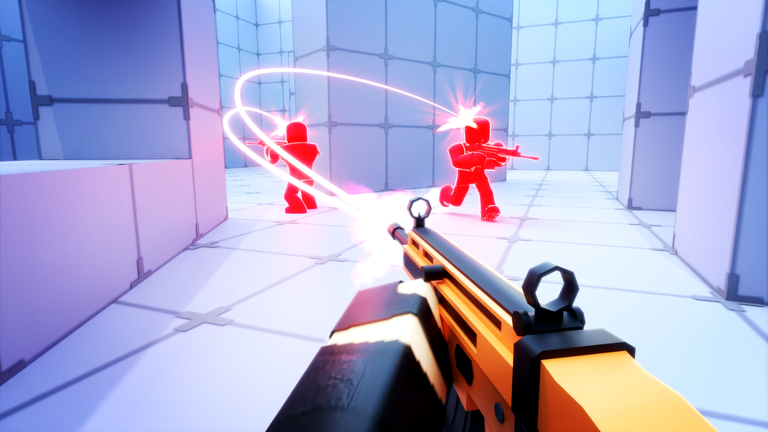
In Roblox RIVALS, the aim animation refers to the visual transition that occurs when you press your ADS (Aim Down Sights) button. By default, the game applies a smooth zoom-in effect that centers your scope or iron sights. When you toggle this setting off, that transition becomes instantaneous or shifts to a more "snappy" feel.
According to community reports, players often find that the default animation creates a slight delay in their visual reaction. By removing the animation, the game engine prioritizes the immediate tactical view, which some veterans claim helps with tracking targets during chaotic arena encounters.
Comparison: Default vs. Disabled Animation
Feature
Default Animation
Disabled Animation
Transition Speed
Smooth/Gradual
Instant/Snappy
Visual Clarity
Cinematic look
Minimalist/Direct
Tracking Feel
Easier for beginners
Better for high-reflex players
Performance
Standard
Potentially reduced visual clutter
Why Pro Players Are Switching It Off
The primary reason professional players advocate for disabling the rivals aim animation is the reduction of "visual noise." When you are in the middle of a intense 1v1, the last thing you want is a camera sway or a slow zoom effect distracting you from your target's movement.
By opting for a direct view, you are essentially reducing the time between pressing your aim button and seeing the environment clearly through your sight. This is especially useful for players who rely on "flick-shotting" or rapid target switching. If you find yourself overshooting your targets, the animation might be masking the exact moment your reticle aligns with the enemy hitbox.
Test the feel before you commit
Spend 10 minutes in the practice arena with the setting turned on, then toggle it off. Focus on how your brain processes the transition—if you feel less "dizzy" or "lost" during the zoom, keep it off.
Optimizing Your Settings for Competitive Play
While the rivals aim animation is a hot topic, it is only one piece of the puzzle. To truly dominate, you need to ensure your overall sensitivity and keybinds are configured correctly. You can always check the Official RIVALS Roblox Page for the latest updates on game mechanics and developer patches that might influence how these settings interact with new weapons.
Recommended Steps to Adjust Your Aim
Enter the Arena: Never change settings in the middle of a ranked match.
Toggle the Setting: Navigate to the game's settings menu and find the "Aim Animation" toggle.
Run Drills: Use a variety of weapons, specifically the AR and Sniper, to see how the change affects different optics.
Consistency Check: Play at least three full matches to allow your muscle memory to adapt to the new visual feedback.
Weapon Class
Best Animation Setting
Reason
Sniper Rifles
Disabled
Precision is king; you need instant sight alignment.
Assault Rifles
Disabled
Helps with tracking targets during movement.
Shotguns
Default
Often used in hip-fire; ADS animation matters less.
Pistols/SMGs
Disabled
High fire rate requires constant visual tracking.
Common Mistakes When Changing Settings
A common error players make is assuming that changing a setting will instantly skyrocket their win rate. The rivals aim animation is a preference, not a "cheat code." Some players find that disabling it makes the game look "stiff" or "ugly," which can actually hurt their performance if they are used to the fluid movement of the default settings.
Another mistake is changing too many settings at once. If you change your mouse sensitivity, keybinds, and aim animation simultaneously, you will have no idea which change is actually helping or hurting your aim. Always adjust one variable at a time and play a few rounds to gather data on your accuracy.
The Psychological Impact of Visual Settings
Beyond the raw mechanics, there is a psychological component to disabling the rivals aim animation. Many players feel more "in control" when the game responds instantly to their inputs. This sense of agency can lead to increased confidence, which often results in more aggressive and effective playstyles.
However, if you feel that the game looks too jarring without the animation, don't force it. Your comfort is the most important factor. If you are playing well with the animation enabled, there is no objective reason to change it just because a streamer or a pro player suggested otherwise.
Avoid over-tweaking
If you find yourself constantly changing settings, you are likely suffering from "settings anxiety." Pick a configuration that feels responsive and stick with it for at least a week to let your muscle memory build.
FAQ: Frequently Asked Questions
Q: Does turning off rivals aim animation actually improve accuracy?
A: It doesn't change your stats directly, but it can improve your reaction time and target tracking by removing the transition delay, allowing you to react faster in fast-paced combat.
Q: Is it better to keep the animation on for sniper rifles?
A: Most high-level players prefer it off for snipers because it allows for a faster "scope-in" feel, which is crucial for quick-scoping agile opponents.
Q: Will developers remove this setting in future updates?
A: While we cannot predict future updates from Nosniy Games, the option to toggle animations is a standard feature in many competitive shooters, so it is likely to stay.
Q: What is the best way to practice my aim after changing settings?
A: Spend 15 minutes in the arena focusing on tracking moving targets to recalibrate your hand-eye coordination before jumping into competitive queues.